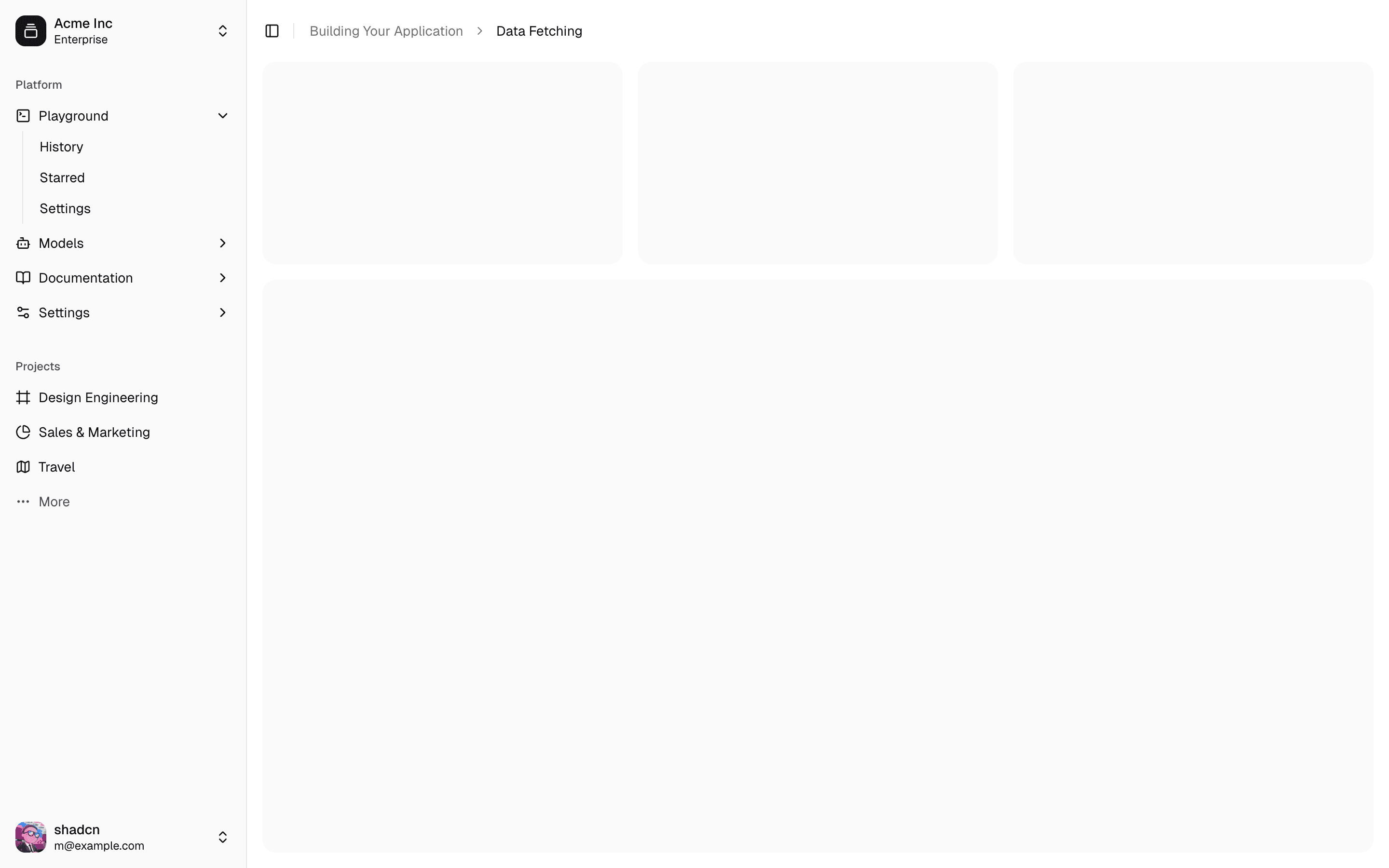
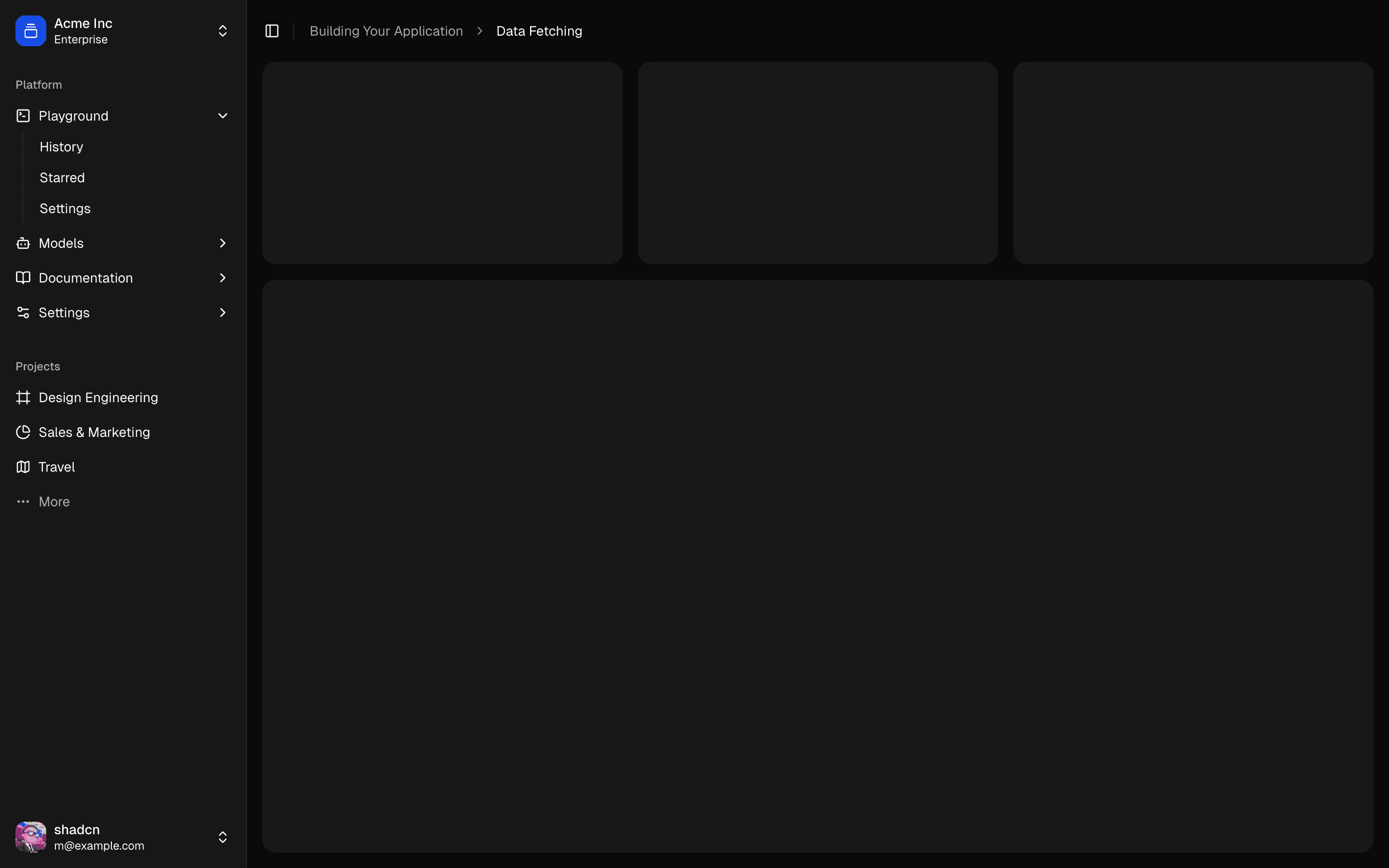
一个可折叠为图标的侧边栏。
侧边栏是最复杂的组件之一。它们是任何应用程序的核心,并且通常包含许多动态部分。
现在我们有了一个坚实的基础。可组合。可主题。可定制。
安装
用法
import { SidebarProvider, SidebarTrigger } from "@/components/ui/sidebar"
import { AppSidebar } from "@/components/app-sidebar"
export default function Layout({ children }: { children: React.ReactNode }) {
return (
<SidebarProvider>
<AppSidebar />
<main>
<SidebarTrigger />
{children}
</main>
</SidebarProvider>
)
}import {
Sidebar,
SidebarContent,
SidebarFooter,
SidebarGroup,
SidebarHeader,
} from "@/components/ui/sidebar"
export function AppSidebar() {
return (
<Sidebar>
<SidebarHeader />
<SidebarContent>
<SidebarGroup />
<SidebarGroup />
</SidebarContent>
<SidebarFooter />
</Sidebar>
)
}组合
使用以下组合来构建 Sidebar 布局:
SidebarProvider
├── Sidebar
│ ├── SidebarHeader
│ ├── SidebarContent
│ │ ├── SidebarGroup
│ │ │ ├── SidebarGroupLabel
│ │ │ ├── SidebarGroupAction
│ │ │ ├── SidebarGroupContent
│ │ │ └── SidebarMenu
│ │ │ ├── SidebarMenuItem
│ │ │ │ ├── SidebarMenuButton
│ │ │ │ ├── SidebarMenuAction
│ │ │ │ └── SidebarMenuBadge
│ │ │ └── SidebarMenuItem
│ │ │ ├── SidebarMenuButton
│ │ │ └── SidebarMenuSub
│ │ │ ├── SidebarMenuSubItem
│ │ │ └── SidebarMenuSubItem
│ │ └── SidebarGroup
│ │ └── SidebarMenu
│ │ ├── SidebarMenuItem
│ │ └── SidebarMenuItem
│ ├── SidebarFooter
│ └── SidebarRail
├── SidebarInset
└── SidebarTrigger结构
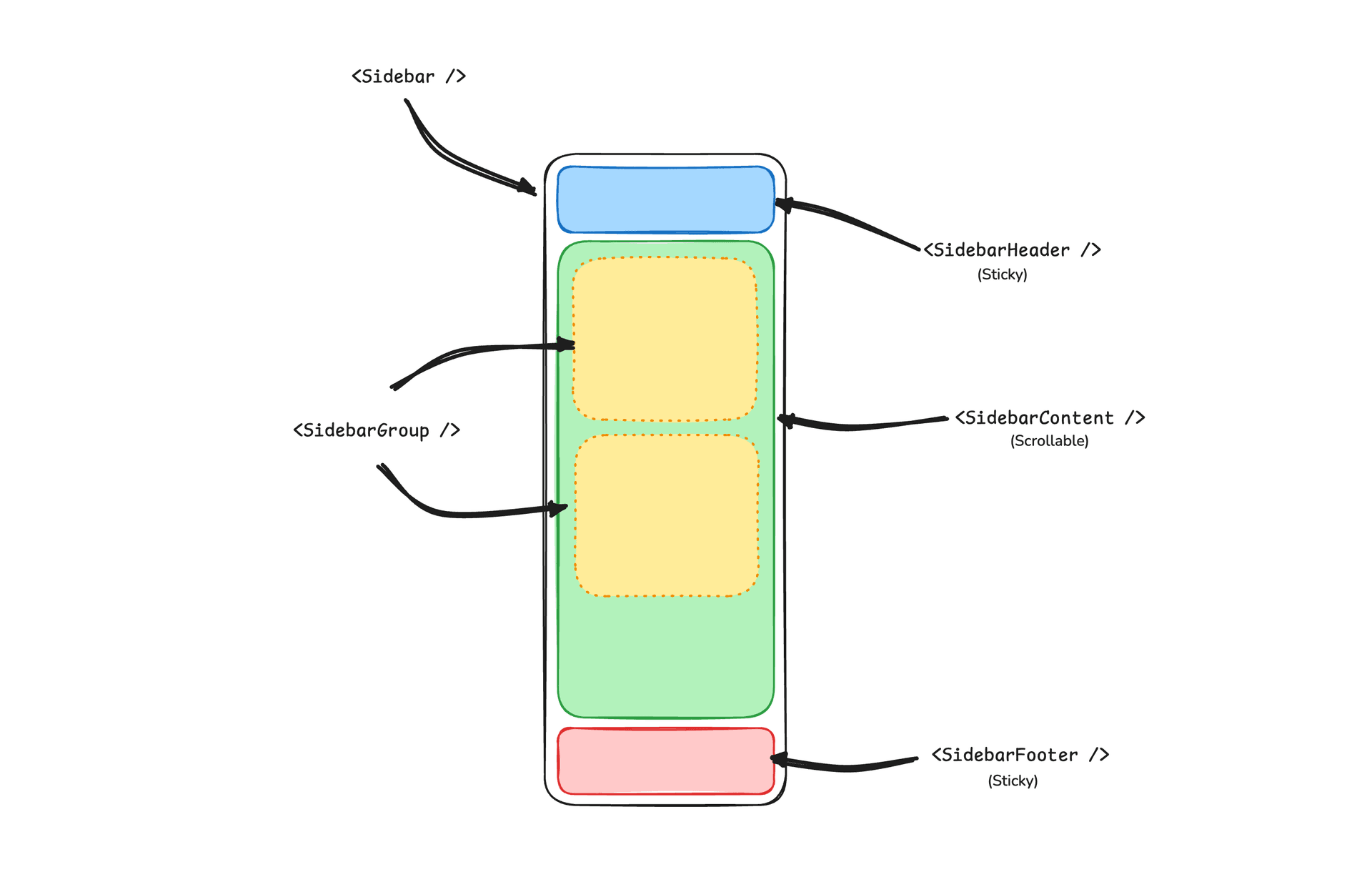
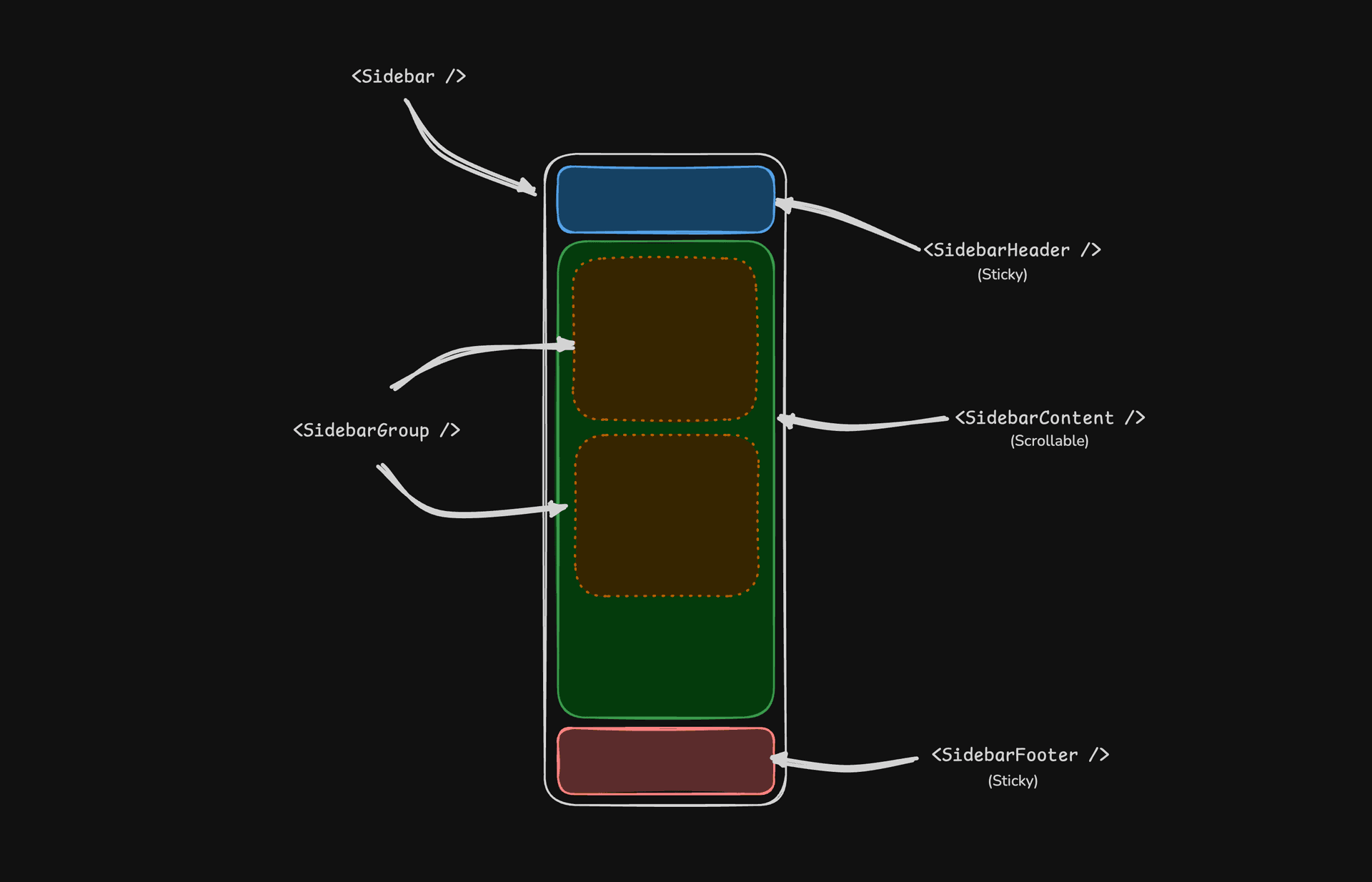
- SidebarProvider — 处理可折叠状态,并为子组件提供侧边栏上下文。
- Sidebar — 主要的可折叠侧边栏面板。
- SidebarHeader — 顶部固定;用于品牌标识、标题或工作区切换器。
- SidebarFooter — 底部固定;用于用户菜单、设置或操作。
- SidebarContent — 头部和脚部之间的可滚动区域。
- SidebarGroup — 将相关导航分组,可选标签、操作和内容区域。
- SidebarMenu / SidebarMenuItem — 用于链接、徽章、操作和嵌套子菜单的菜单结构。
- SidebarRail — 在适用时调整侧边栏宽度的调整手柄。
- SidebarInset — 使用
inset变体时包裹主内容。 - SidebarTrigger — 切换侧边栏打开或折叠的控件。
SidebarProvider
SidebarProvider 组件用于为 Sidebar 组件提供上下文。你的应用应始终被 SidebarProvider 包裹。
属性
宽度
如果你的应用中只有一个侧边栏,可以使用 sidebar.tsx 中的 SIDEBAR_WIDTH 和 SIDEBAR_WIDTH_MOBILE 变量来设置侧边栏宽度。
const SIDEBAR_WIDTH = "16rem"
const SIDEBAR_WIDTH_MOBILE = "18rem"如果应用中存在多个侧边栏,可以在 style 属性中使用 CSS 变量 --sidebar-width 和 --sidebar-width-mobile。
<SidebarProvider
style={
{
"--sidebar-width": "20rem",
"--sidebar-width-mobile": "20rem",
} as React.CSSProperties
}
>
<Sidebar />
</SidebarProvider>快捷键
触发侧边栏的快捷键是在 Mac 上使用 cmd+b,在 Windows 上使用 ctrl+b。
const SIDEBAR_KEYBOARD_SHORTCUT = "b"侧边栏
主要的 Sidebar 组件用于渲染一个可折叠的侧边栏。
属性
注意: 如果使用 inset 变体,记得用 SidebarInset 组件包裹主内容。
<SidebarProvider>
<Sidebar variant="inset" />
<SidebarInset>
<main>{children}</main>
</SidebarInset>
</SidebarProvider>useSidebar
useSidebar 钩子用于控制侧边栏状态。
import { useSidebar } from "@/components/ui/sidebar"
export function AppSidebar() {
const {
state,
open,
setOpen,
openMobile,
setOpenMobile,
isMobile,
toggleSidebar,
} = useSidebar()
}SidebarHeader
使用 SidebarHeader 组件添加侧边栏的固定头部。
<Sidebar>
<SidebarHeader>
<SidebarMenu>
<SidebarMenuItem>
<DropdownMenu>
<DropdownMenuTrigger asChild>
<SidebarMenuButton>
选择工作区
<ChevronDown className="ml-auto" />
</SidebarMenuButton>
</DropdownMenuTrigger>
<DropdownMenuContent className="w-[--radix-popper-anchor-width]">
<DropdownMenuItem>
<span>Acme Inc</span>
</DropdownMenuItem>
</DropdownMenuContent>
</DropdownMenu>
</SidebarMenuItem>
</SidebarMenu>
</SidebarHeader>
</Sidebar>SidebarFooter
使用 SidebarFooter 组件添加固定的底部区域。
<Sidebar>
<SidebarFooter>
<SidebarMenu>
<SidebarMenuItem>
<SidebarMenuButton>
<User2 /> 用户名
</SidebarMenuButton>
</SidebarMenuItem>
</SidebarMenu>
</SidebarFooter>
</Sidebar>SidebarContent
SidebarContent 包裹侧边栏内容,是添加 SidebarGroup 的地方。它是可滚动的。
<Sidebar>
<SidebarContent>
<SidebarGroup />
<SidebarGroup />
</SidebarContent>
</Sidebar>SidebarGroup
使用 SidebarGroup 创建侧边栏的分区。
SidebarGroup 包含一个 SidebarGroupLabel、一个 SidebarGroupContent 和一个可选的 SidebarGroupAction。
<SidebarGroup>
<SidebarGroupLabel>应用</SidebarGroupLabel>
<SidebarGroupAction>
<Plus /> <span className="sr-only">添加项目</span>
</SidebarGroupAction>
<SidebarGroupContent></SidebarGroupContent>
</SidebarGroup>要使 SidebarGroup 可折叠,可将其包裹在 Collapsible 中。
<Collapsible defaultOpen className="group/collapsible">
<SidebarGroup>
<SidebarGroupLabel asChild>
<CollapsibleTrigger>
帮助
<ChevronDown className="ml-auto transition-transform group-data-[state=open]/collapsible:rotate-180" />
</CollapsibleTrigger>
</SidebarGroupLabel>
<CollapsibleContent>
<SidebarGroupContent />
</CollapsibleContent>
</SidebarGroup>
</Collapsible>SidebarMenu
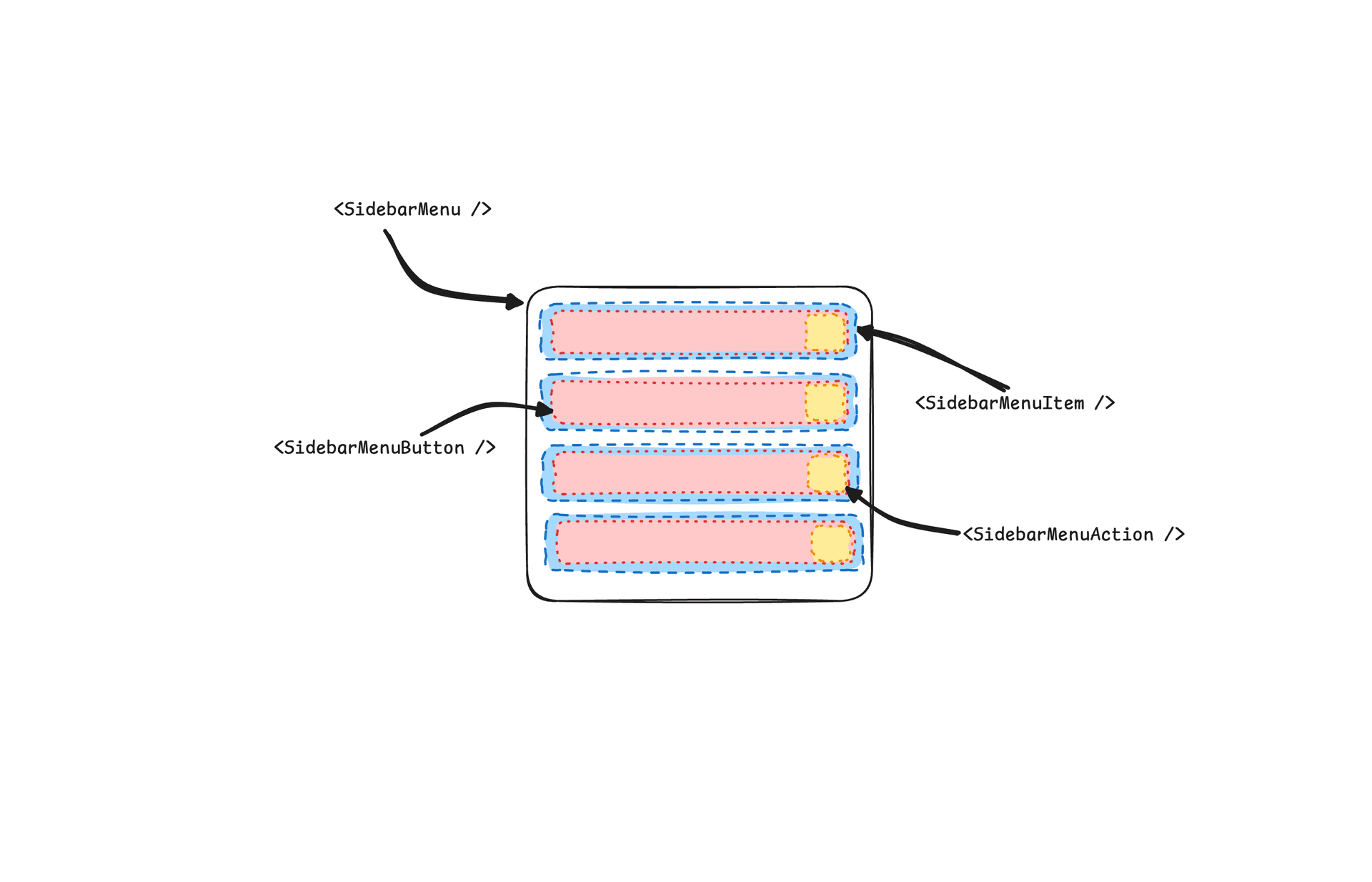
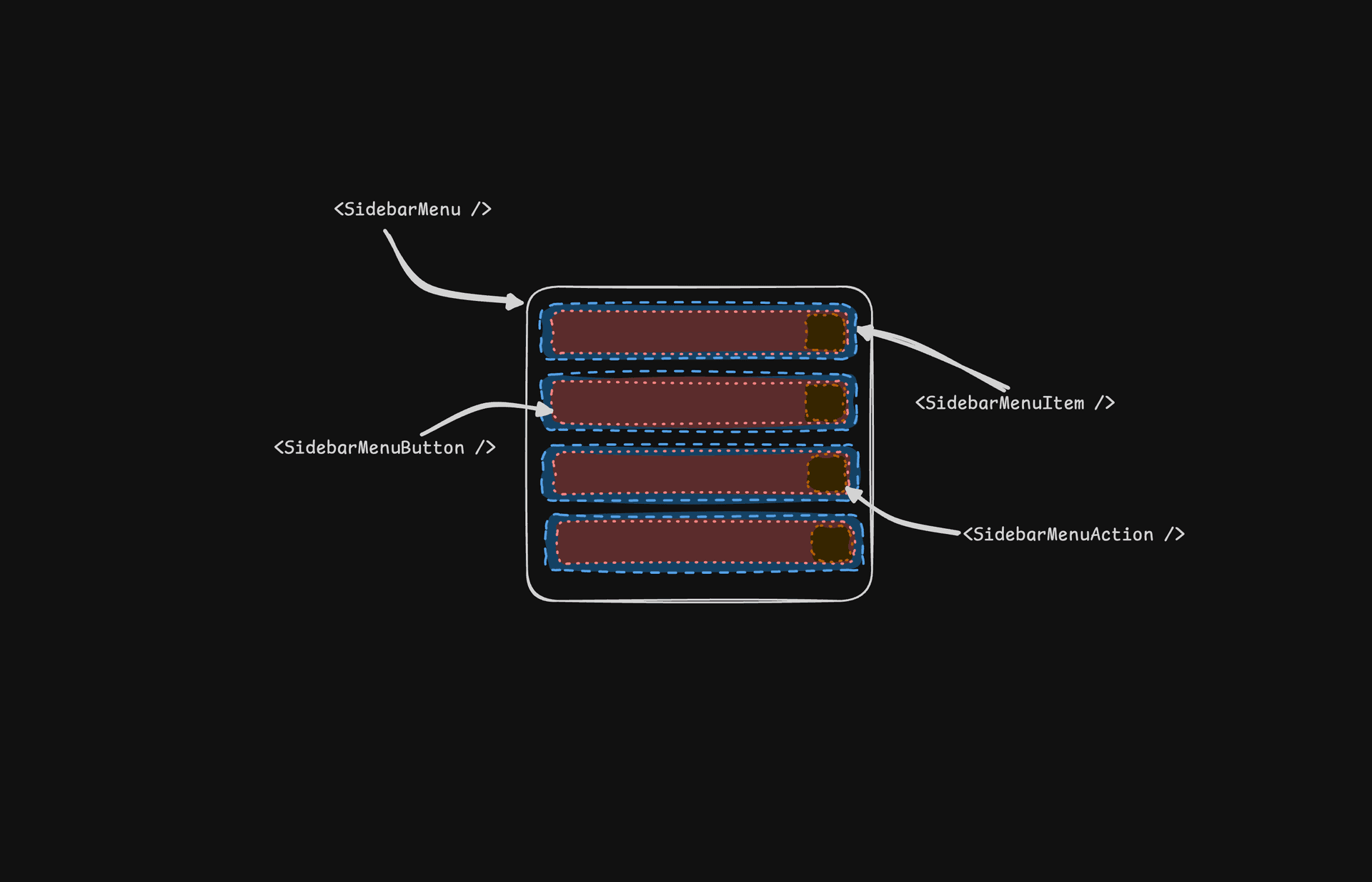
SidebarMenu 组件用于构建 SidebarGroup 中的菜单。
<SidebarMenu>
{projects.map((project) => (
<SidebarMenuItem key={project.name}>
<SidebarMenuButton asChild>
<a href={project.url}>
<project.icon />
<span>{project.name}</span>
</a>
</SidebarMenuButton>
</SidebarMenuItem>
))}
</SidebarMenu>SidebarMenuButton
SidebarMenuButton 组件用于渲染 SidebarMenuItem 内的菜单按钮。
默认情况下,SidebarMenuButton 渲染为按钮元素,但你可以使用 asChild 属性渲染为其他组件,例如 Link 或 a 标签。
使用 isActive 属性标记菜单项为激活状态。
<SidebarMenuButton asChild isActive>
<a href="#">首页</a>
</SidebarMenuButton>SidebarMenuAction
SidebarMenuAction 组件用于在 SidebarMenuItem 内渲染菜单操作按钮。
<SidebarMenuItem>
<SidebarMenuButton asChild>
<a href="#">
<Home />
<span>首页</span>
</a>
</SidebarMenuButton>
<SidebarMenuAction>
<Plus /> <span className="sr-only">添加项目</span>
</SidebarMenuAction>
</SidebarMenuItem>SidebarMenuSub
SidebarMenuSub 组件用于在 SidebarMenu 内渲染子菜单。
<SidebarMenuItem>
<SidebarMenuButton />
<SidebarMenuSub>
<SidebarMenuSubItem>
<SidebarMenuSubButton />
</SidebarMenuSubItem>
</SidebarMenuSub>
</SidebarMenuItem>SidebarMenuBadge
SidebarMenuBadge 组件用于在 SidebarMenuItem 内渲染徽章。
<SidebarMenuItem>
<SidebarMenuButton />
<SidebarMenuBadge>24</SidebarMenuBadge>
</SidebarMenuItem>SidebarMenuSkeleton
SidebarMenuSkeleton 组件用于渲染 SidebarMenu 的骨架屏。
<SidebarMenu>
{Array.from({ length: 5 }).map((_, index) => (
<SidebarMenuItem key={index}>
<SidebarMenuSkeleton />
</SidebarMenuItem>
))}
</SidebarMenu>SidebarTrigger
使用 SidebarTrigger 组件渲染切换侧边栏的按钮。
import { useSidebar } from "@/components/ui/sidebar"
export function CustomTrigger() {
const { toggleSidebar } = useSidebar()
return <button onClick={toggleSidebar}>切换侧边栏</button>
}SidebarRail
SidebarRail 用于在侧边栏内渲染一条轨道,可用于切换侧边栏。
<Sidebar>
<SidebarHeader />
<SidebarContent>
<SidebarGroup />
</SidebarContent>
<SidebarFooter />
<SidebarRail />
</Sidebar>受控侧边栏
使用 open 和 onOpenChange 属性控制侧边栏。
export function AppSidebar() {
const [open, setOpen] = React.useState(false)
return (
<SidebarProvider open={open} onOpenChange={setOpen}>
<Sidebar />
</SidebarProvider>
)
}主题
我们使用以下 CSS 变量为侧边栏设定主题。
@layer base {
:root {
--sidebar-background: 0 0% 98%;
--sidebar-foreground: 240 5.3% 26.1%;
--sidebar-primary: 240 5.9% 10%;
--sidebar-primary-foreground: 0 0% 98%;
--sidebar-accent: 240 4.8% 95.9%;
--sidebar-accent-foreground: 240 5.9% 10%;
--sidebar-border: 220 13% 91%;
--sidebar-ring: 217.2 91.2% 59.8%;
}
.dark {
--sidebar-background: 240 5.9% 10%;
--sidebar-foreground: 240 4.8% 95.9%;
--sidebar-primary: 0 0% 98%;
--sidebar-primary-foreground: 240 5.9% 10%;
--sidebar-accent: 240 3.7% 15.9%;
--sidebar-accent-foreground: 240 4.8% 95.9%;
--sidebar-border: 240 3.7% 15.9%;
--sidebar-ring: 217.2 91.2% 59.8%;
}
}样式
以下是基于不同状态为侧边栏设置样式的技巧。
<Sidebar collapsible="icon">
<SidebarContent>
<SidebarGroup className="group-data-[collapsible=icon]:hidden" />
</SidebarContent>
</Sidebar><SidebarMenuItem>
<SidebarMenuButton />
<SidebarMenuAction className="peer-data-[active=true]/menu-button:opacity-100" />
</SidebarMenuItem>RTL
要在 shadcn/ui 中启用 RTL 支持,请参阅RTL 配置指南。
查看 RTL 侧边栏更新日志
RTL 支持
如果你从之前版本的 Sidebar 组件升级,需要应用以下更新来添加 RTL 支持:
向 Sidebar 组件添加 dir 属性。
在解构 props 中添加 dir,并传递给移动端的 SheetContent:
function Sidebar({
side = "left",
variant = "sidebar",
collapsible = "offcanvas",
className,
children,
+ dir,
...props
}: React.ComponentProps<"div"> & {
side?: "left" | "right"
variant?: "sidebar" | "floating" | "inset"
collapsible?: "offcanvas" | "icon" | "none"
}) {然后在移动端视图中传递给 SheetContent:
<Sheet open={openMobile} onOpenChange={setOpenMobile} {...props}>
<SheetContent
+ dir={dir}
data-sidebar="sidebar"
data-slot="sidebar"
data-mobile="true"向侧边栏容器添加 data-side 属性。
在侧边栏容器元素添加 data-side={side}:
<div
data-slot="sidebar-container"
+ data-side={side}
className={cn(更新侧边栏容器定位类。
用 CSS data 属性选择器替换 JavaScript 三元条件类:
className={cn(
- "fixed inset-y-0 z-10 hidden h-svh w-(--sidebar-width) transition-[left,right,width] duration-200 ease-linear md:flex",
- side === "left"
- ? "left-0 group-data-[collapsible=offcanvas]:left-[calc(var(--sidebar-width)*-1)]"
- : "right-0 group-data-[collapsible=offcanvas]:right-[calc(var(--sidebar-width)*-1)]",
+ "fixed inset-y-0 z-10 hidden h-svh w-(--sidebar-width) transition-[left,right,width] duration-200 ease-linear md:flex data-[side=left]:left-0 data-[side=right]:right-0 data-[side=left]:group-data-[collapsible=offcanvas]:left-[calc(var(--sidebar-width)*-1)] data-[side=right]:group-data-[collapsible=offcanvas]:right-[calc(var(--sidebar-width)*-1)]",更新 SidebarRail 定位类。
更新 SidebarRail 组件使用物理定位处理轨道:
className={cn(
- "hover:after:bg-sidebar-border absolute inset-y-0 z-20 hidden w-4 -translate-x-1/2 transition-all ease-linear group-data-[side=left]:-end-4 group-data-[side=right]:start-0 after:absolute after:inset-y-0 after:start-1/2 after:w-[2px] sm:flex",
+ "hover:after:bg-sidebar-border absolute inset-y-0 z-20 hidden w-4 ltr:-translate-x-1/2 rtl:-translate-x-1/2 transition-all ease-linear group-data-[side=left]:-right-4 group-data-[side=right]:left-0 after:absolute after:inset-y-0 after:start-1/2 after:w-[2px] sm:flex",为 SidebarTrigger 图标添加 RTL 翻转。
在 SidebarTrigger 中的图标添加 className="rtl:rotate-180" 以便在 RTL 模式下翻转:
<Button ...>
- <PanelLeftIcon />
+ <PanelLeftIcon className="rtl:rotate-180" />
<span className="sr-only">Toggle Sidebar</span>
</Button>应用这些更改后,可以使用 dir 属性设置方向:
<Sidebar dir="rtl" side="right">
{/* ... */}
</Sidebar>侧边栏将在 LTR 和 RTL 布局中正确定位并处理交互。